Camera setup
Reolink RTSP and ONVIF Setup for OmniNVR
Set up compatible Reolink cameras or Reolink NVR channels in OmniNVR using RTSP main/sub streams, ONVIF discovery, and stable recording settings.
Compatibility is model- and firmware-specific. OmniNVR and TardisLabs are not affiliated with or endorsed by Reolink.
Check compatibility before you start
Open the Reolink client or the camera web interface and enable RTSP and ONVIF under network server settings. Assign a stable address with a DHCP reservation and create a non-admin user for the recorder. Powered PoE and Wi-Fi models are usually better candidates for 24/7 NVR use than battery models because they can keep a stream open continuously.
If cameras are reachable only through a Reolink NVR, use the NVR address and its channel mapping. Do not assume a battery camera paired to a hub exposes the same direct services as a standalone wired model.
Add the camera or NVR channel
A common H.264 main URL is rtsp://CAMERA-IP:554/h264Preview_01_main; the sub stream ends in _sub. Some models and configurations use an H.265 path or return the preferred URI through ONVIF. Use ONVIF discovery when available, then compare the returned profiles with the manual URLs.
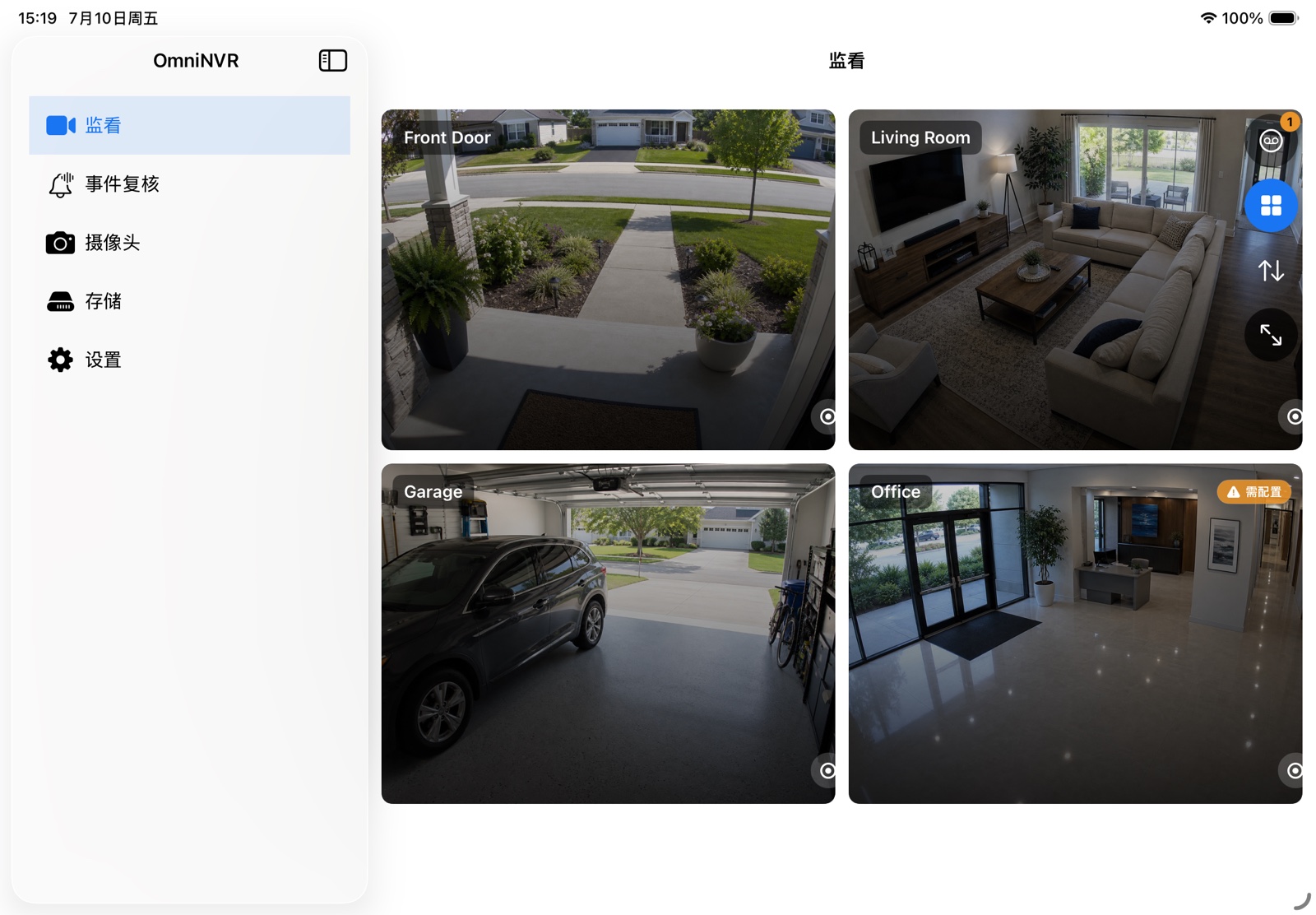
Add both roles in OmniNVR: main for detailed live view and event clips, sub for the continuous baseline. If the device is a Reolink NVR, increment the channel portion according to the recorder documentation and verify each preview.
Choose recording roles
Use the lower-bitrate sub stream for continuous history when it has enough detail, and reserve the main stream for focused live view or event clips. This reduces storage and decode load without giving up high-quality evidence around important moments.
Before scaling up, record one camera for at least fifteen minutes, play it from the timeline, disconnect the network briefly, and restart OmniNVR. A working live preview alone does not prove that timestamps, recovery, and storage are reliable.
Troubleshooting checklist
- Connection refused: confirm RTSP/ONVIF was enabled; it may be off by default after setup or reset.
- Battery drains quickly: continuous third-party streaming may not be supported for that battery model.
- Black video with audio: test H.264 and disable unsupported smart encoding.
- Frequent reconnects: reserve the IP, improve Wi-Fi, and test RTSP over TCP.
Frequently asked questions
Does every Reolink camera work with OmniNVR?
No. The camera or recorder must expose a compatible RTSP, RTSPS, ONVIF, or HLS stream, and support varies by model, firmware, codec, power mode, and network topology.
Should I connect to the camera or the brand NVR?
Connect directly when the camera is reachable and you want independent streams. Connect to the NVR when cameras are isolated behind its PoE network or the recorder is the only endpoint that exposes each channel.
Can I expose the RTSP port to the internet?
Do not forward camera RTSP ports for long-term remote access. Keep cameras local and use a trusted VPN when remote viewing is required.
Sources and further reading
Build your NVR on the Apple devices you already own.
Monitor, record, review, and retain RTSP and ONVIF camera video locally.